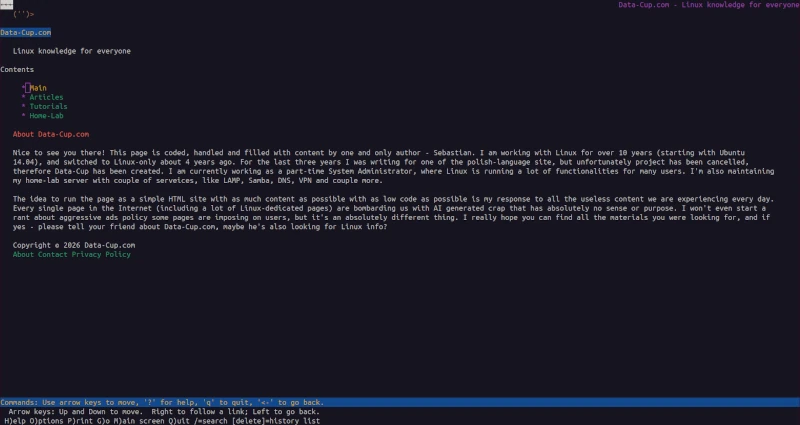
Browsing Web in Command Line Interface with Lynx
Most of the content available on web these days is very chaotic – pictures, videos, tons of ads flowing into reader's eyes not allowing the reader to fully focus on the most important thing – knowledge. But there is a different way to read network content, which is through Linux’s Command Line Interface. There is an amazing tool allowing you to do so, which is Lynx.
What is Lynx?
Lynx is a Command Line Interface tool allowing you to browse the content of the web pages directly in your terminal. I think we could all agree that we can call Lynx a Web Browser. It has an amazing ability to display the content of the web page in an organized manner in the terminal.
Why do we need it?
Imagine a scenario like that – you have an internet connection, want to check some instructions to configure some services but can only use a Linux server. Without the ability to browse the web you’d be limited only to the manuals. Sometimes it’s really hard to find the required information there, or it takes a lot of time. But here comes Lynx – a CLI Web Browser allowing you to open any page directly in terminal. It has one, additional functionality – it does not display ads!
Of course there are a lot of limitations, like lack of pictures or videos, trouble with some tables and problems with multi-column pages, but on the other hand the information that stays on the screen is pure text without any distractions.
How to install Lynx?
To install Lynx on most Linux distros all you have to do is type a simple command in the terminal. Below are the most popular:
Ubuntu - sudo apt install lynx
Fedora - sudo dnf install lynx
Arch - sudo pacman -S lynx
openSUSE - sudo zypper install lynx
After confirmation, the installation process should only take a couple of seconds. Lynx Web Browser is ready to run!
Basic usage
To open any page with Lynx just type a simple command in your terminal:
lynx example.com
After loading the page you can jump between hyperlinks with the use of Arrow keys and scroll pages with use of Page Up / Page Down keys. To open an entirely new web page press the G key, and to quit the browser press the Q key. It really is that simple!
Of course prepare yourself to experience web browsing in a way you haven’t seen before. Many pages that look good in a GUI may be absolutely unreadable in Lynx. The best possible scenario is when the web page creator has text-based users in mind (like data-cup.com for example), which happens less and less often...
If you have any trouble reading the page, or you need to print this tutorial download the PDF here: Browsing web in CLI (PDF)